💳 Tebex Store Setup
Complete walkthrough explaining how to connect your FiveM game server with Tebex and automate package command delivery.
Prerequisite: Before starting, ensure you have administrative access to your Tebex Creator panel and read/write access to your FiveM server files.
Setup Flow
Open Game Server Integration
Log into your Tebex panel, navigate to the sidebar, and open Integrations > Game Server.

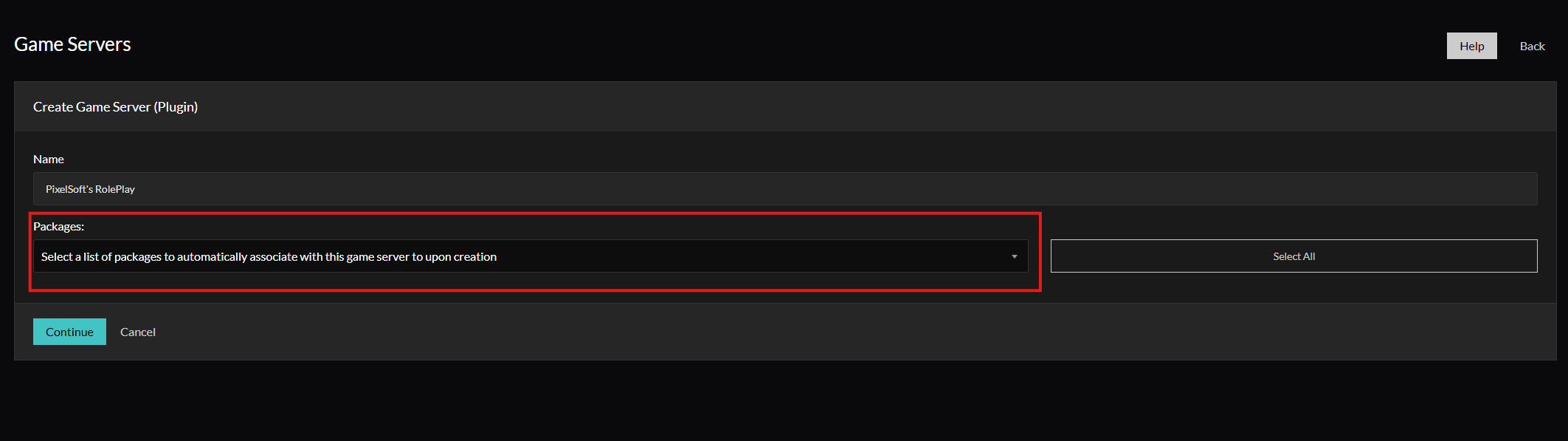
Connect Your Game Server
Fill in your server identification details, select FiveM as your game platform, and proceed to the next step.
Add the Secret Key
Copy the generated secret key token from Tebex, add it into your server.cfg file, and restart your server:
# Tebex Secret Key
sv_tebexSecret "YOUR_TEBEX_SECRET_KEY_HERE"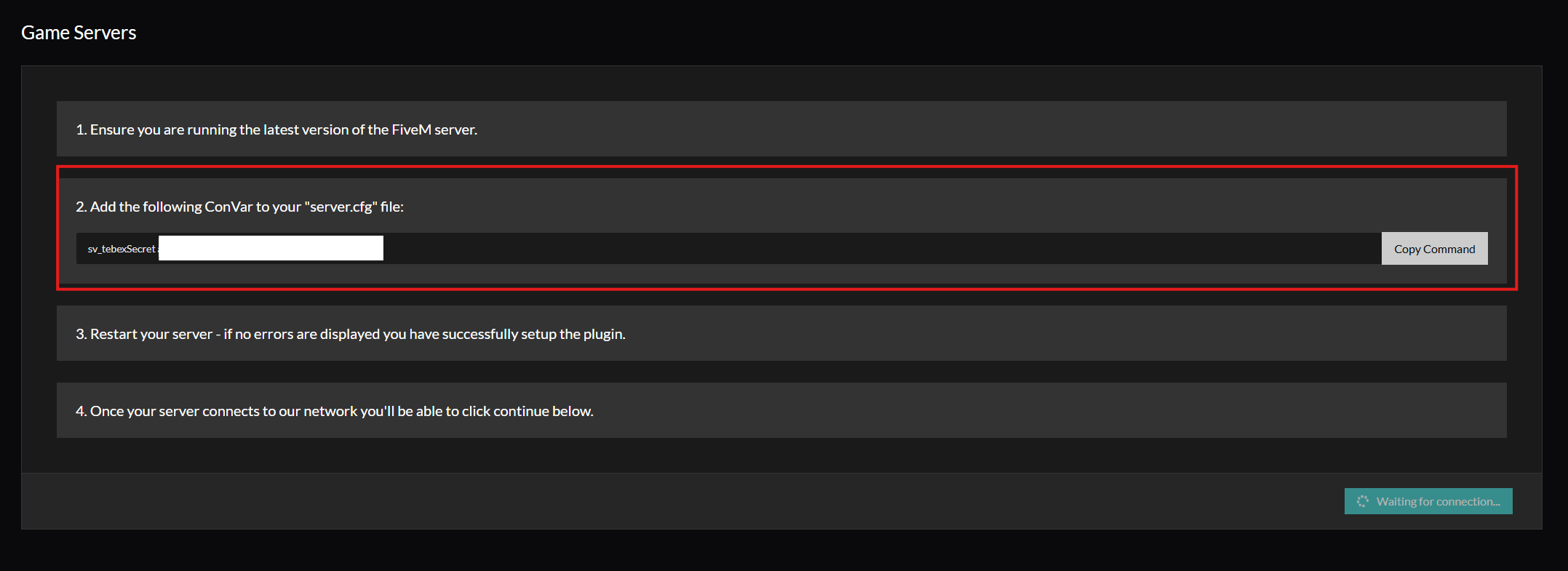
Confirm the Connection
Check your FiveM server console window for the successful Tebex handshake message. Return to the Tebex dashboard and confirm the connection status.

Open Game Server Commands
Navigate to your package edit page within Tebex, scroll to the package actions section, and select Game Server Commands.

Add the Command
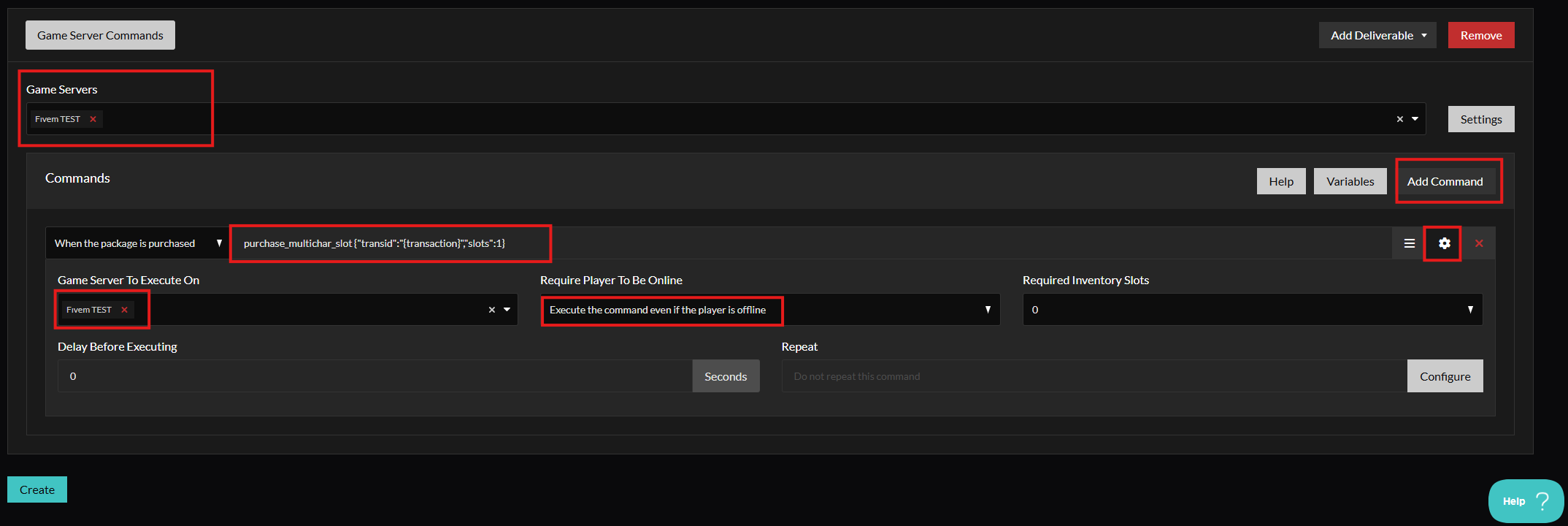
Configure the command execution parameters:
- Click Game Servers > Add Command
- Choose Place Command
- Open Settings
- Select your connected Game Server to Execute
- Check Execute Command Even When the Player Is Offline
- Click Done and save package changes.
Important Purchase Notice
Transaction Sync Delay: Following a Tebex purchase, there may be a short webhook delay (1–3 minutes) while Tebex registers the transaction and executes the command on your database. We recommend players keep their transaction ID handy and wait a few moments before claiming.
Need Help?
👾 Join Our Discord Community
Need assistance with your Tebex webhooks or game server commands? Our team is available on Discord.
Get Support ↗
Created with ❤️ by PixelSoft